How to remove a background before converting to SVG
A background is part of the image, so a tracer turns it into shapes: a big rectangle behind your design, color filling the inside of every "o", and specks from stray marks. Cutting software then cuts the rectangle and you weed the rest. Clear it before you convert and the SVG comes out with only your design.
Why not delete it after tracing?
- The background often shows up in the design as well: inside letters, between shapes and around the edges. In the SVG those are many separate pieces to find and delete.
- Soft, anti-aliased edges blend the design into the background. Traced as is, they can leave a thin halo of background color around every shape. Clearing the background first takes that color out of the edge pixels.
- Colors are chosen from what’s in the image. Without the background, they go to your design.
1. Upload and look for the suggestion
Upload your image to SVG Me. If the design sits on one solid color, the Detected box says so and offers "Remove it first". Otherwise, choose Clean up next to the file name under the preview.
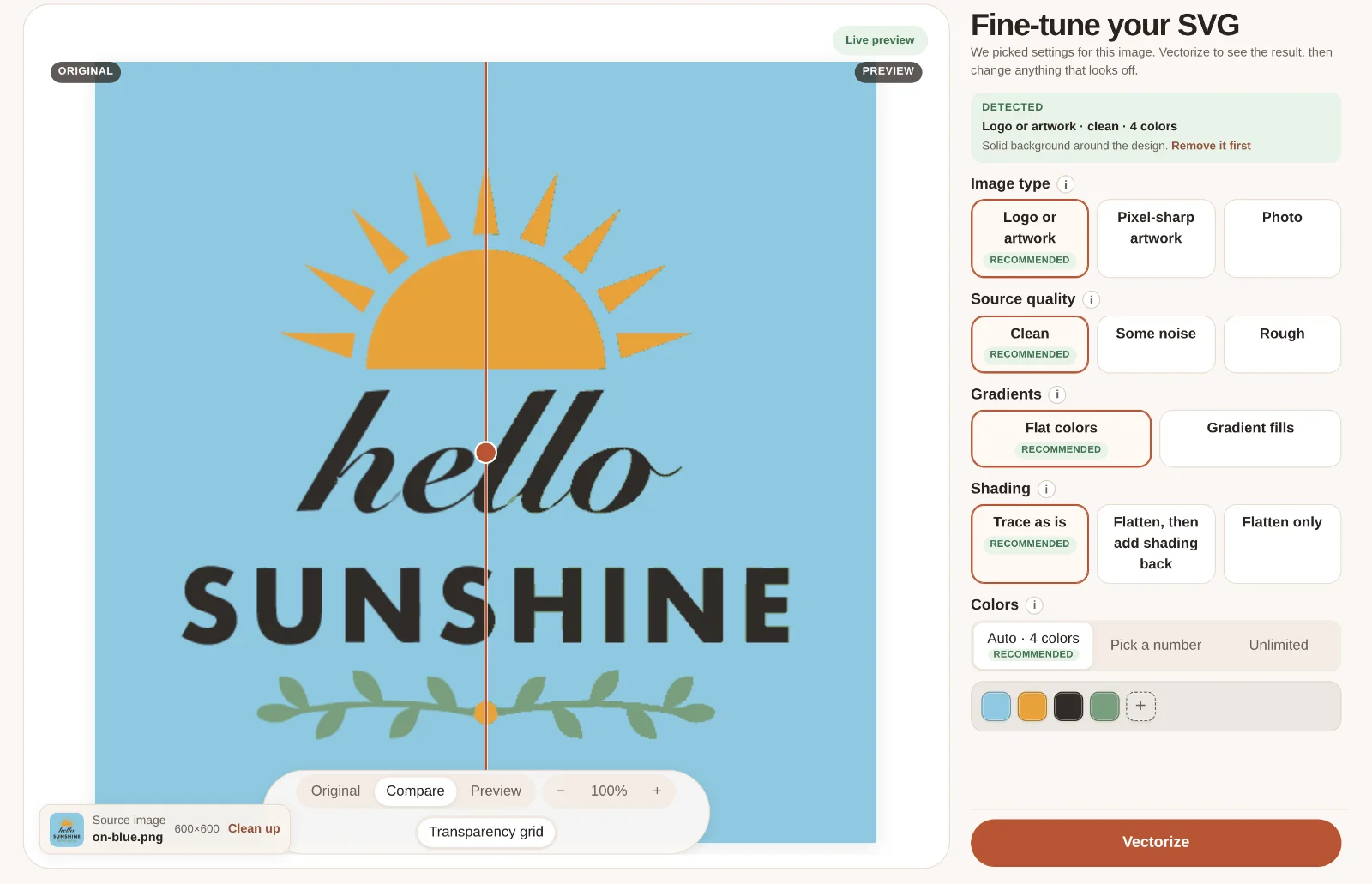
2. Clear the background
- Choose Remove background. It clears the color that fills the edges of the image, working inward until it reaches your design.
- If the background also shows inside letters and closed shapes, like the middle of an "o", tick "Also inside letters and enclosed shapes".
- Raise Tolerance if a fringe of background remains, or lower it if parts of your design disappear. The last removal updates as you drag.
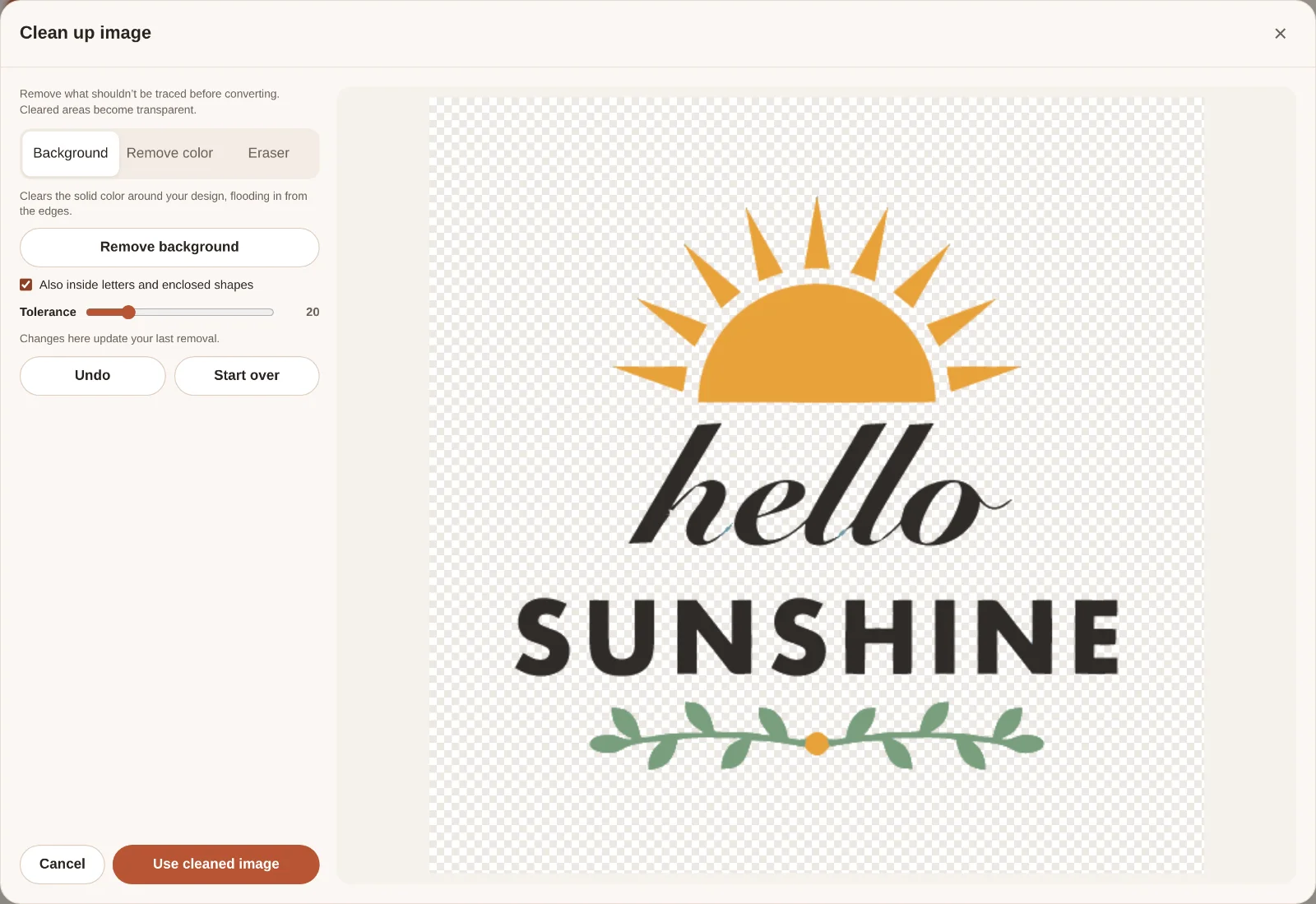
To keep white inside your design, like the whites of eyes, leave "Also inside letters" off: only the background connected to the edges is removed.
3. Remove anything else
- Remove color: click a color to clear it where you click, or tick "Everywhere in the image" to clear it all over. Good for a second background color, a watermark tint or a drop shadow.
- Eraser: drag over signatures, text, smudges or scanner dust. Change the brush size for fine work.
- Undo steps back one change; Start over returns to the original.
4. Convert
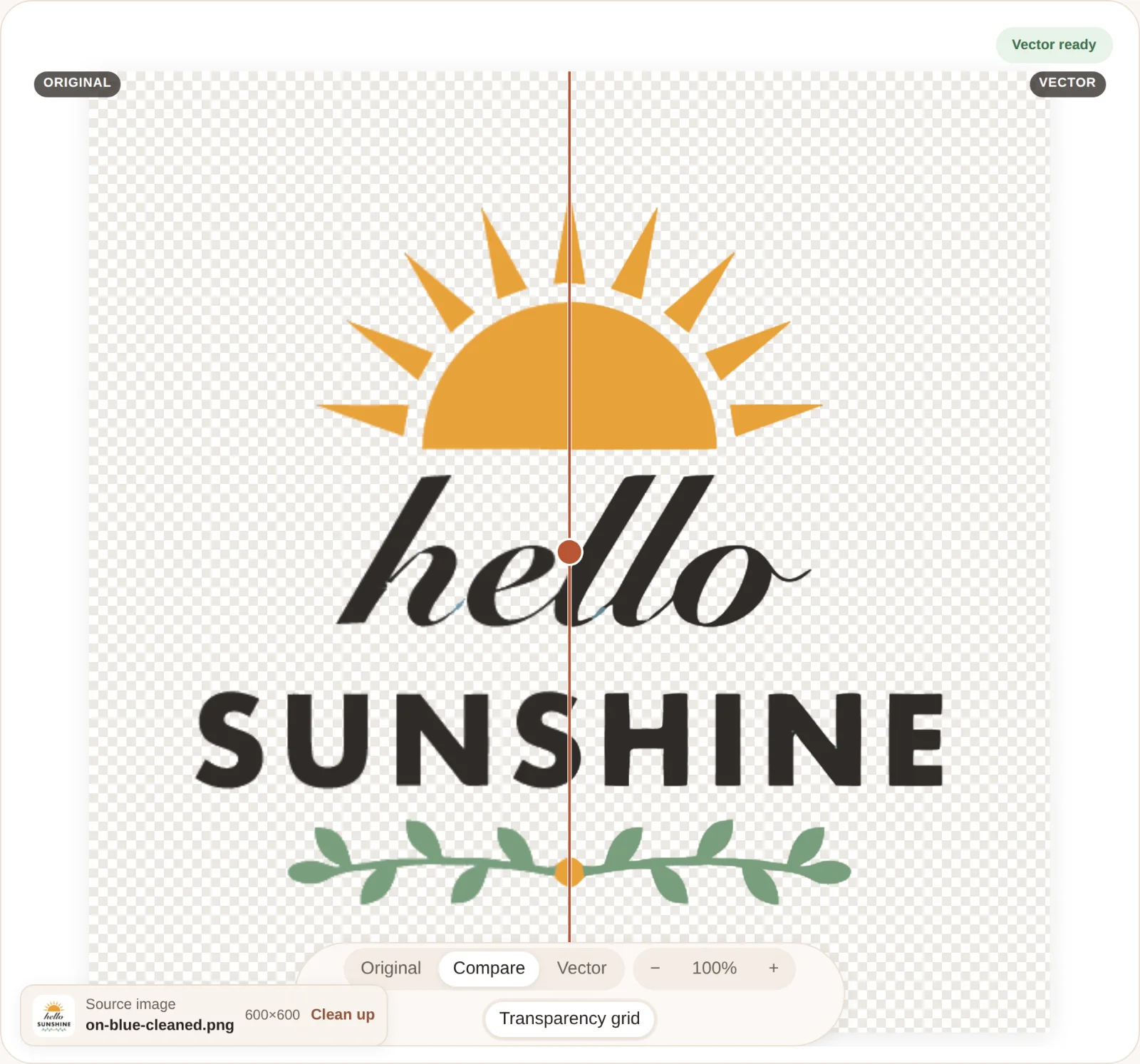
Choose Use cleaned image. SVG Me analyzes the cleaned image again. Check that Transparency is set to Keep transparent, and the SVG will have no background shape. Then download in the format your machine needs: layers for layered vinyl, cut outlines for a laser, or a sticker with a cut line.
Questions
Does this work on photos?
It works when the subject sits on a fairly even color, like a product on a plain backdrop. Busy or textured photo backgrounds need a dedicated photo background remover first; then upload the transparent PNG.
My image is already a transparent PNG. Do I need this?
No, the background is already gone. Use Clean up only to erase stray marks or remove a color.
Does cleaning up cost a credit?
No. Cleaning up, converting and previewing are free. You pay only when you download.