How to turn an AI logo into an SVG
ChatGPT, Gemini and Midjourney are great for coming up with a logo, but they give you a PNG: fine on screen, blurry when enlarged, and no use to a cutter, engraver or print shop. Here is how to turn it into a real vector, using one AI-made logo from start to finish.
Why AI-generated logos go blurry when you enlarge them
AI image tools paint pixels. Even a large AI logo is a fixed grid of them, with soft edges and shading blended into every shape. Enlarge it and the edges turn fuzzy; send it to a cutting machine or laser and there are no outlines to follow.
Can ChatGPT or Gemini make an SVG?
Not of the logo you liked. Their image generators only make raster images. Ask the chatbot for an SVG instead and it writes the code from a description, so you get a simplified redraw: different shapes, missing details and often mangled lettering.
Let the AI do the design, then trace that exact PNG into vector shapes.
Step 1: Generate the logo as a PNG
A few words in your prompt make the image much easier to trace cleanly:
- "Flat colors" or "flat vector style": few colors trace into few, clean shapes.
- "No gradients, shadows or 3D effects" if you plan to cut or screen print it.
- "On a plain white background" or "transparent background", so the design separates cleanly.
- Bold shapes and short text. AI tools often misspell or warp small lettering.
Download the largest version the tool offers, rather than a screenshot or a copy from the chat preview.
Step 2: Upload the PNG
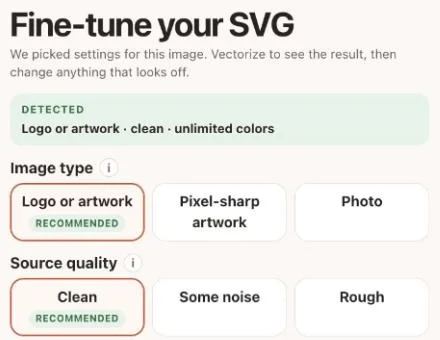
Open the logo to SVG converter and upload the PNG. SVG Me detects the kind of image, how clean it is and its colors, and picks settings to match.
Step 3: Choose how many colors to keep
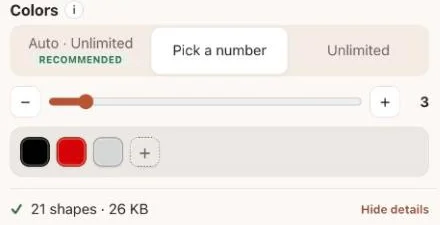
This is the one real decision. Gradients and glossy effects are made of hundreds of shades, and every shade you keep becomes its own shape.
- For print and screens, keep the default. Our logo became 114 shapes in 89 flat colors (109 KB) and kept its chrome look.
- For shirts, vinyl and cutting, pick a number. At 3 colors it became 21 shapes (26 KB): black, red and silver, one layer each.
Step 4: Check the result and download
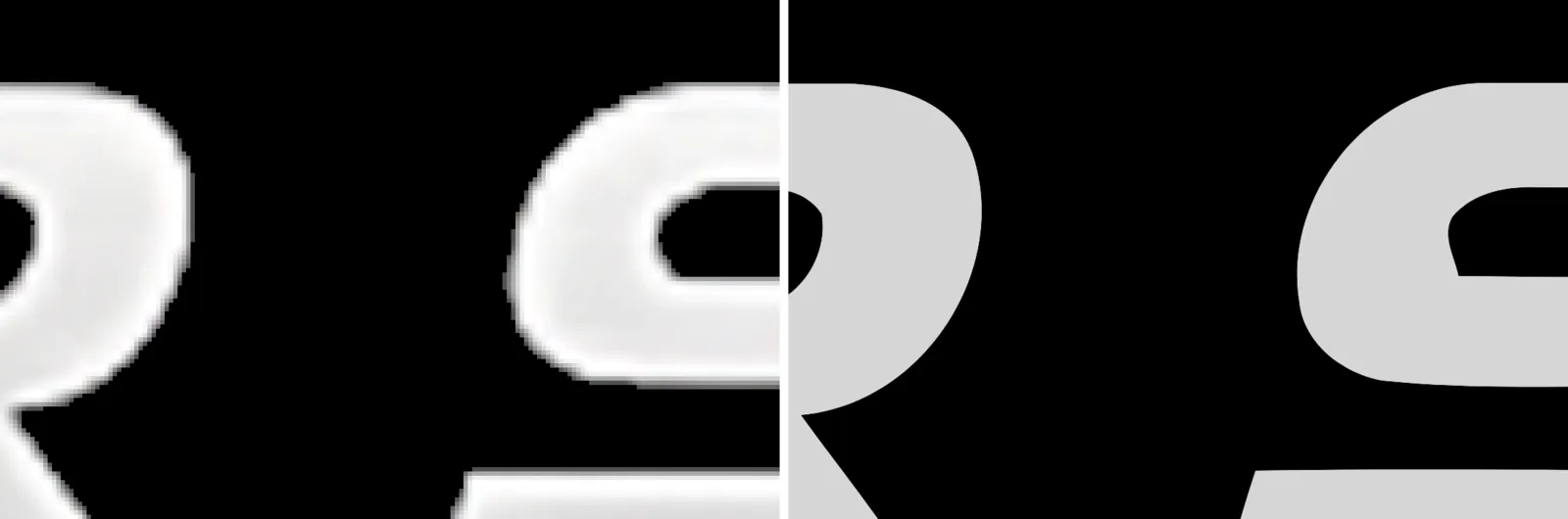
Zoom in before you download. Where the PNG breaks into soft, blocky pixels, the SVG stays smooth at any size.
Then choose a format:
- Standard: filled shapes, for Illustrator, Inkscape, Figma, Canva and print.
- Layers by color: each color grouped as its own layer, for Cricut, Silhouette and screen printing.
- Cut outlines: outlines only, for laser cutting and scoring.
Using your AI logo on shirts, laser cutters and Cricut
- T-shirts: screen printers charge per ink color, so reduce to as few colors as the design allows. For heat-transfer vinyl, see how to layer vinyl from a multi-color SVG.
- Laser engraving and cutting: see how to prepare an SVG for LightBurn. The same file works in xTool Creative Space and Glowforge.
- Cricut and Silhouette: download Layers by color and follow how to make an SVG for Cricut.
- Signs, banners and stickers: send the Standard SVG to the print shop to print at any size.
What to check before you use it
- Text: read every letter. If the AI garbled a word, regenerate the image or fix it in the PNG before tracing, or retype it in a design app afterward.
- Thin lines and tiny details: look at them at the size you will print or cut. Very fine shading is hard to cut and weed.
- Colors: make sure each color you keep is one you actually want as a separate ink, vinyl or layer.
Converting and previewing are free, so you can try different color counts and see the exact result before you pay.
Questions
Can ChatGPT make an SVG file?
ChatGPT can write SVG code, but it draws it from a description, so it won’t match a logo you generated as an image. For a faithful vector, save the PNG and convert it with a tracer like SVG Me.
Can Gemini make an SVG?
Gemini’s image generation produces raster images such as PNG. Like ChatGPT, it can write SVG code as text, but that is a redraw rather than a trace of your image.
Why does my AI logo have so many colors?
AI tools blend soft shading, highlights and anti-aliased edges into every shape, which creates thousands of near-identical shades. Choose a color count when you convert so each color you keep is one you want.
Can I use an AI-generated logo commercially?
That depends on the AI tool’s terms and where you live. Check the terms of the tool you used before you sell products with the logo or register it as a trademark.
Does this work with Midjourney, DALL·E or Canva AI images?
Yes. Any PNG, JPG or WebP works, whichever tool made it.